What it is
The CashSheet AI Connector lets you ask an AI assistant questions about your business in plain language: what did we sell last Friday between six and nine, which items are up this month, who was clocked in on Sunday, why was ticket 77 voided. It works with Claude (claude.ai, the Claude desktop and mobile apps, and Claude Code). You sign in with your normal CashSheet login and choose the organisation the assistant may see. There is nothing to install on the till.
The assistant answers from the same Back Office data you already see, and it can do one thing on your behalf: add menu items, always after showing you exactly what it is about to add and waiting for your yes. It never deletes anything.
Move your menu in, in minutes
Setting up a new store usually means typing the menu in one item at a time. With the connector you hand Claude the menu you already have and approve what it prepares.
Hand Claude your menu
Whatever you already have: a photo, a PDF, or a spreadsheet. No template to fill in.
Photo of the menu board
PDF menu
CSV or spreadsheet
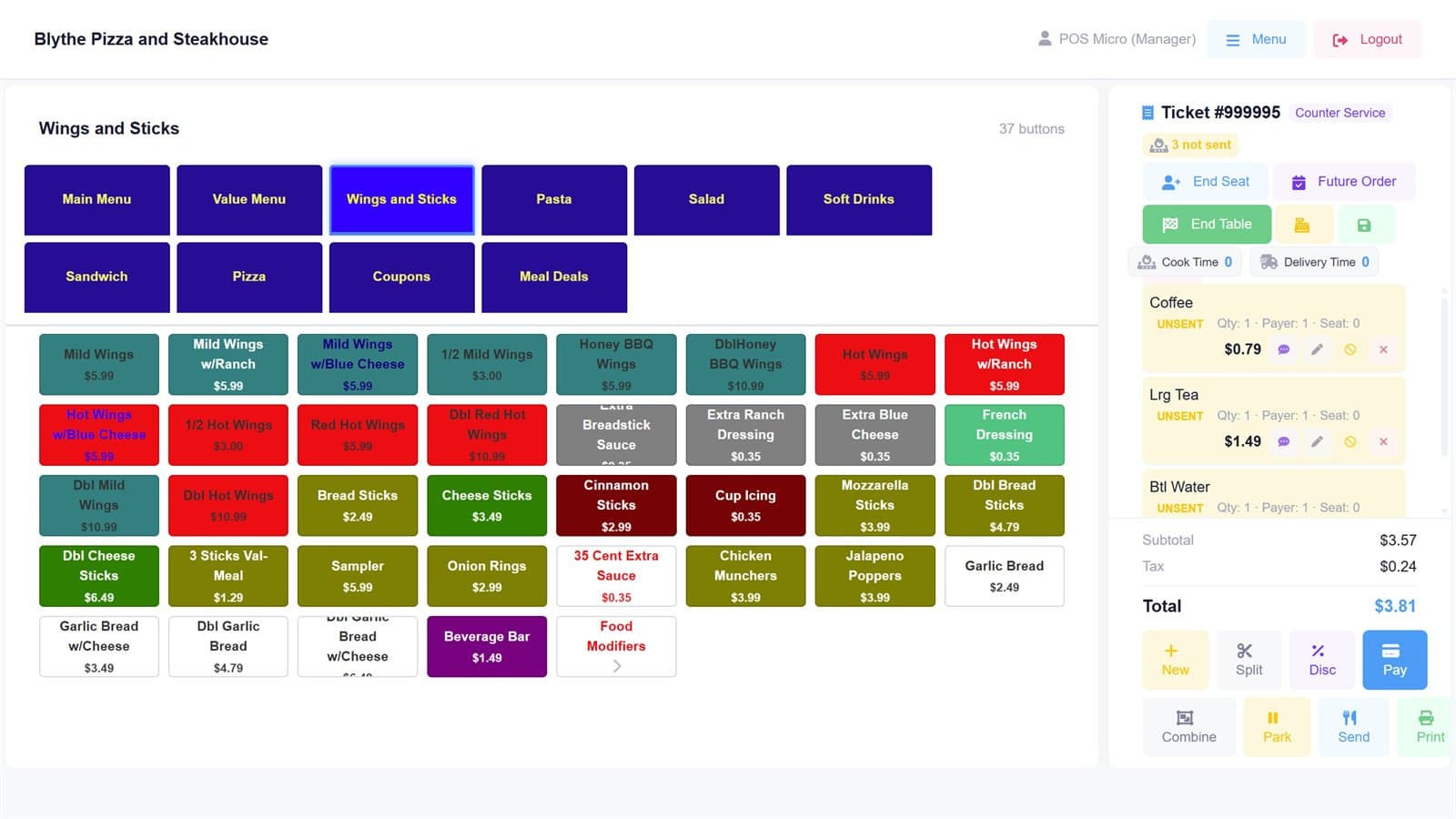
Put everything on this menu on a new Wings and Sticks screen.
Check the dry run
Claude reads the menu and shows you every item, its price and the till screen it lands on. Nothing is written yet.
Dry run: nothing has been changed yet.
34 new and 3 unchanged, all on a new screen, Wings and Sticks. Nothing will be deleted. Shall I apply it?
Say yes
Change anything first if you like (“make the wings 6.49”) and Claude runs the dry run again.
Done. 34 items added to the Wings and Sticks screen.
They are in your Back Office now, and every till picks them up on its next sync, within about two minutes.
Ring it up
The same menu on the till, ready to sell. This one is a real screen.
Set it up
Claude (claude.ai, desktop and mobile apps)
- Open Settings, then Connectors.
- Choose Add custom connector, name it CashSheet, and paste
https://mcp.cashsheet.com/mcp. Once CashSheet is listed in the Connectors Directory you can add it from there instead. - Click Connect. You will be sent to
accounts.cashsheet.comto sign in with your CashSheet email and password. - Pick the organisation the assistant may see and tick what it may do. Read is what you want for questions; Add and update menu items is only needed if you want it to build your menu.
- Back in Claude, start a conversation and ask.
Claude Code
claude mcp add --transport http cashsheet https://mcp.cashsheet.com/mcpThen type /mcp in a session and follow the sign-in link.
Any Claude plan, including Free, can add a custom connector. On Claude Team and Enterprise an owner adds it once and members enable it.
What you can ask
- Sales: “How did last week compare with the week before?” “What did we sell by hour on Saturday?” “Top ten items this month.”
- Cash: “Show me yesterday’s cash sheet.” “Is Tuesday closed out, and did it balance?”
- People: “How many hours did the kitchen work last week?” “Who was over forty hours?”
- Voids: “Which tickets were voided this week and why?” “Who authorised the voids on Friday?”
- Stock: “How much flour and mozzarella do we have on hand?”
- Menu: “What is on the Drinks screen?” “Do we sell a large iced tea, and for how much?”
- Pricing: “Are we running dual pricing, and how much did the card surcharge bring in this week?”
Building a menu with it: the details
Menu import needs Add and update menu itemsticked when you connect. Hand the assistant a photo of your menu board, a PDF, or a CSV or spreadsheet and say where the items should go, for example "put these on a new Drinks screen". It prepares the rows, runs a dry run that shows you every item it would create or change and which till screen each one lands on, and only writes after you say yes. Existing items are left alone unless you ask for them to be updated. Nothing is ever deleted. For a pizza menu it can build the whole size-by-crust-by-topping matrix and the builder screen in one go. New items reach your tills on their next sync, within about two minutes.
What the assistant can see, and what it cannot
- One organisation. The one you chose when you connected. To switch, disconnect and connect again.
- What your role can see. The connector uses your CashSheet login, so it sees exactly what you would see in the Back Office, no more. Wages and pay rates are visible only to owners and admins; everyone else gets hours without money.
- Never card data. Card numbers are never stored in CashSheet and never reach the assistant.
- Your assistant's plan pays for the answers. CashSheet does not charge for the connector and does not run any AI model itself.
Data and privacy
When you ask a question, the assistant calls CashSheet on your behalf and receives only the figures needed to answer it. CashSheet does not receive, store or read your conversation. The connection is protected by OAuth 2.0 with PKCE; access tokens last one hour and are refreshed automatically until you disconnect. You can disconnect at any time from the assistant's connector settings, which revokes the connection immediately. What the assistant does with the data it receives is governed by that assistant's own privacy policy. CashSheet's handling of your data is described in our Privacy Policy.
Security
- OAuth 2.0 authorization code flow with PKCE; dynamic client registration and client ID metadata documents supported.
- Every request carries a short-lived, signed token scoped to one organisation; the CashSheet API re-checks your membership on every call, so removing a user from the organisation cuts the connector off at once.
- Tools are marked read-only or additive; there are no delete tools.
- Transport is HTTPS only, with origin checks on the connector endpoint.
Support
Email [email protected] or use the support page. Please include the assistant you are using and the question you asked.